Product walkthrough
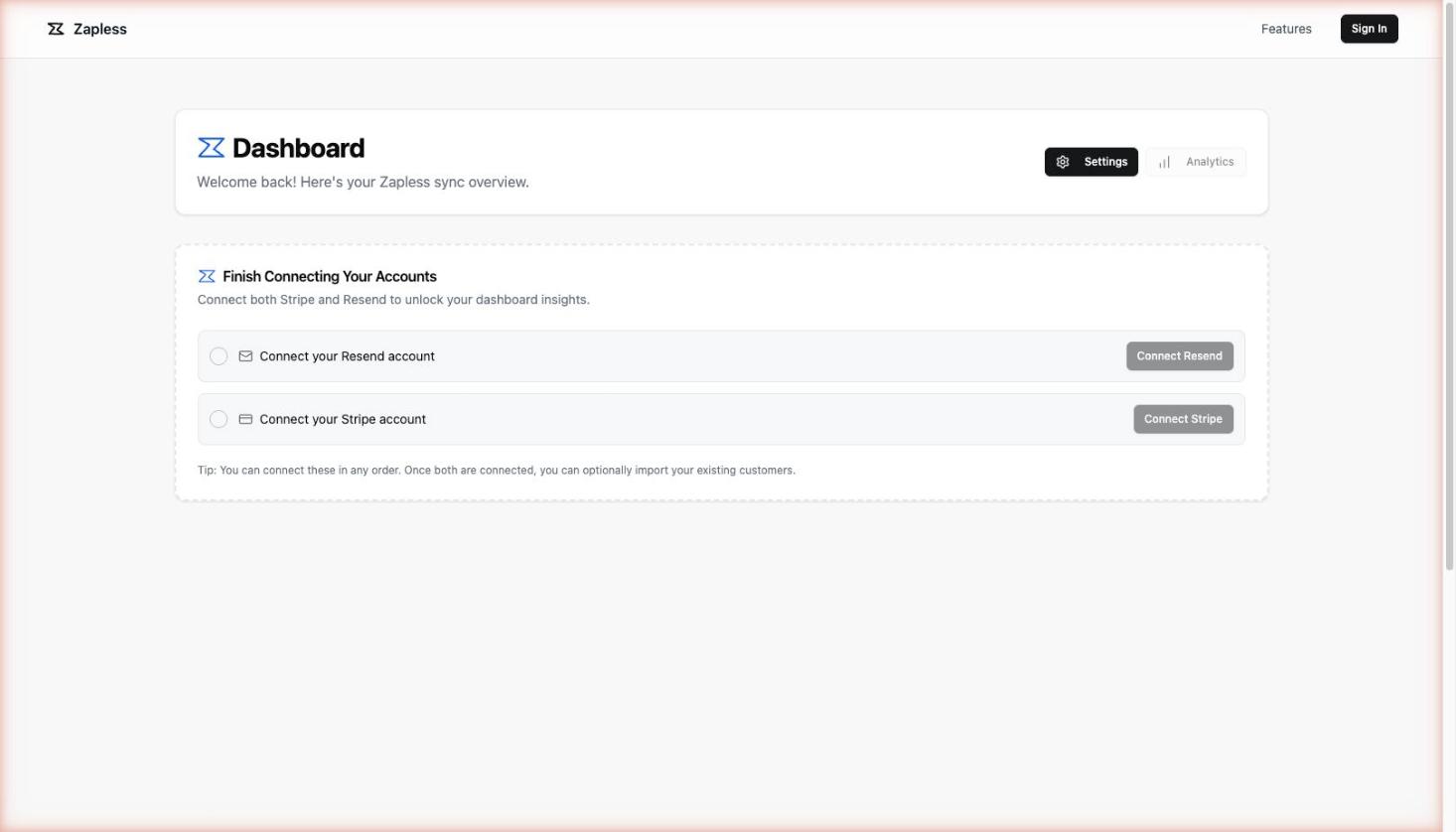
Connect email platform
Zapless works with Resend, Mailchimp, SendGrid, and ConvertKit (Kit). Before your Stripe data can sync, you need to connect at least one email provider.
From your dashboard, click Connect Resend (or your preferred provider). You'll be prompted to enter your API key — find this in your email platform's account settings under API Keys or Developer Settings.
Once connected, Zapless will verify the connection and your provider will appear as active on the dashboard. You only need to do this once.
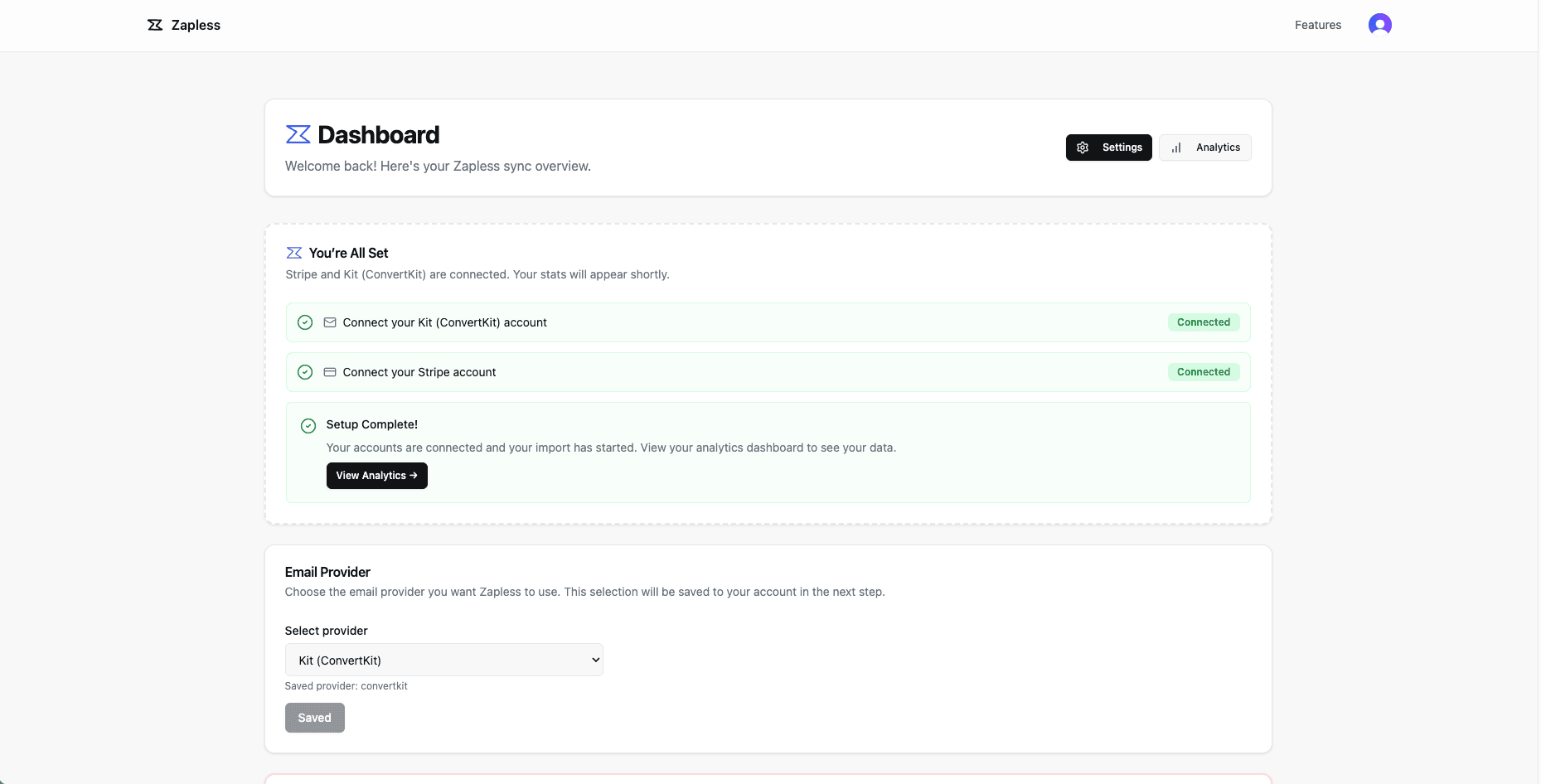
Connect Stripe
Head back to your dashboard and click Connect Stripe. You'll be redirected to Stripe to authorize Zapless — no copy-pasting API keys required.
Once authorized, Zapless will pull in your existing Stripe customers and subscriptions automatically. This initial import may take a moment depending on the size of your customer list.
With both accounts connected, Zapless begins syncing in real time. New Stripe events — signups, upgrades, cancellations, payment failures — will update your email list as they happen.
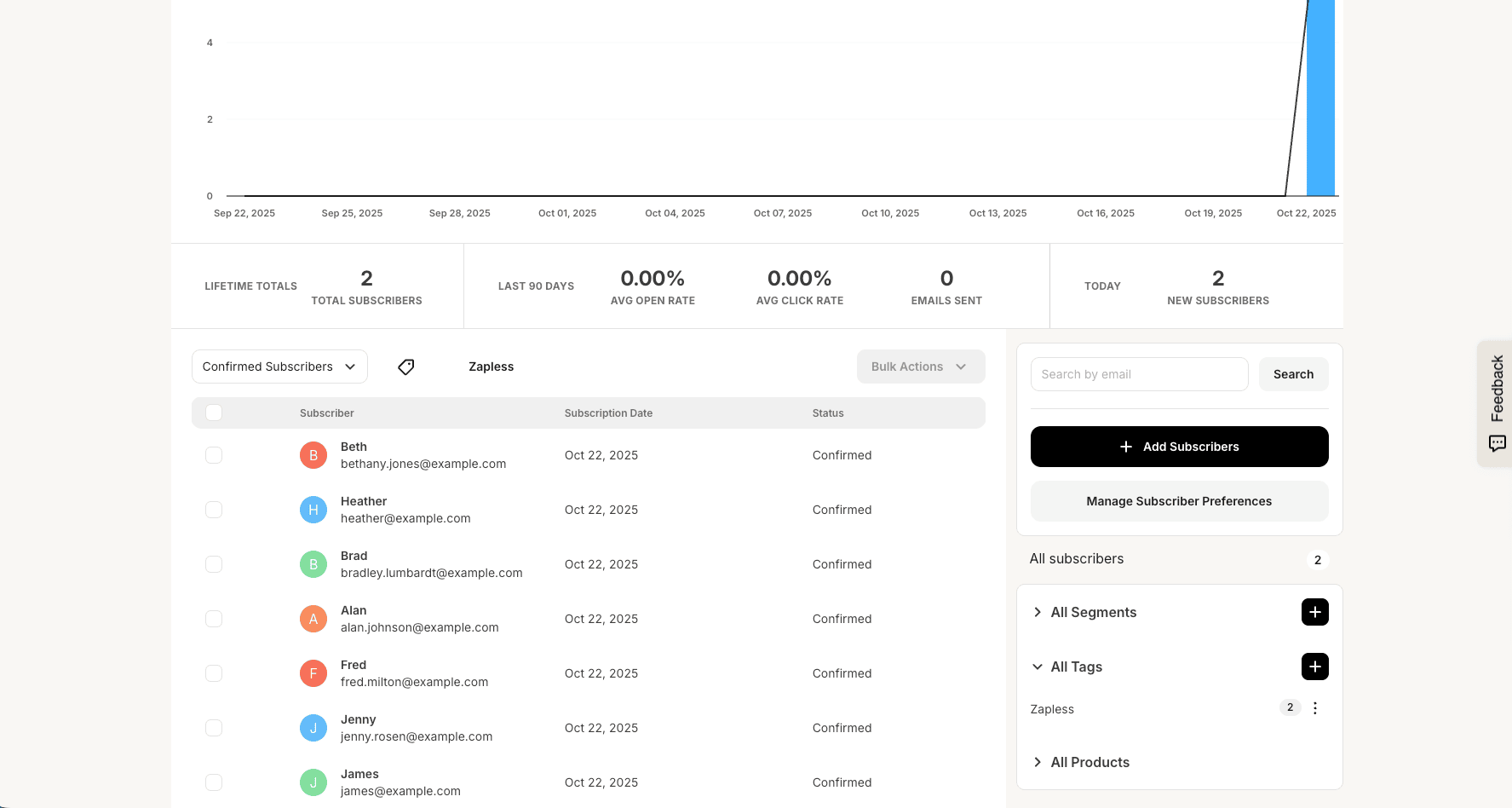
Never worry your list is not current
Once your Stripe and email accounts are connected, Zapless runs quietly in the background. Every time a customer signs up, upgrades, downgrades, or churns in Stripe, your email list is updated automatically — no manual exports, no cron jobs, no CSV uploads.
This means you can send targeted campaigns based on real subscription state: welcome sequences for new trials, win-back emails for churned users, upsell campaigns for active subscribers on a lower plan.
Your email list always reflects what's actually happening in your business.